
Mastering NetSuite Data Migration In 2026: A Step-by-Step Guide
The single biggest threat to your NetSuite go-live date isn’t the workflow configuration or the user training—it’s the data migration.
Most implementation partners will hand you a set of blank CSV templates and say, “Fill these out.” This is a trap. If you simply copy-paste seven years of messy QuickBooks data into NetSuite, you will break your reporting before you even print your first invoice.
A sophisticated NetSuite data migration strategy is not about moving data; it is about transforming it. This guide outlines the “Golden Order of Operations,” the “Suspense Account” technique for handling AR/AP, and why you should likely leave your granular historical data behind.
For information on implementations, check out our Full NetSuite Implementation Guide.
What is NetSuite Data Migration?
NetSuite Data Migration is the structured process of extracting, scrubbing, and importing legacy records into the NetSuite ERP architecture. Unlike simple cloud storage transfers, this process requires transforming flat data into NetSuite’s relational database model.
It is divided into two distinct categories:
-
Master Data: Static records that rarely change (Customers, Vendors, Items, Chart of Accounts, Employees).
-
Transactional Data: The financial movements associated with that master data (Invoices, Bills, Journal Entries, Purchase Orders).
“Golden Rule”: Never import Transactional Data until 100% of your Master Data is validated. If NetSuite cannot match an invoice to an existing Customer ID, the import will fail.
Phase 0: Data Hygiene Best Practices (Do This First)
Before you even open a NetSuite CSV template, you must scrub your legacy data. NetSuite is rigid; it does not tolerate the “free-text” errors that systems like QuickBooks allow.
1.”Active Record” Purge
Do not treat your ERP as an archive. If a customer hasn’t purchased in 3 years, or a vendor hasn’t been paid in 5, do not migrate them.
-
The Rule: Filter your legacy export by “Last Transaction Date.” If it is older than [X] years, leave it behind. You can always look it up in the old system if needed.
2. Standardization of Static Lists
In QuickBooks, you might type “California,” “Calif,” and “CA.” In NetSuite, you must match the exact State/Province spelling defined in the system setup (usually the 2-letter ISO code).
-
The Rule: Normalize all States/Countries to ISO codes (e.g., “FL” not “Florida”, “US” not “USA”).
3. De-Duplication Strategy
Duplicate customers ruin CRM data and credit limit checks.
-
The Rule: Sort your Customer list by name and address in Excel. Identify duplicates (e.g., “Acme Inc” vs “Acme, Inc.”). Merge them in the legacy system before export, or map them to a single
External IDin your import file.
Data Cleansing Checklist
Use this checklist against your Excel export files before attempting an import.
General Formatting
-
[ ] Trim Whitespace: Use Excel’s
=TRIM()function on all text columns to remove invisible leading/trailing spaces that cause matching errors. -
[ ] Remove Special Characters: Strip out characters like
#,&, or%from ID fields if your internal numbering schema doesn’t support them. -
[ ] Check Character Limits: Ensure “ID” or “Name” fields do not exceed NetSuite’s character limits (usually 60-80 chars for names).
Master Data Specifics
-
[ ] Email Validation: Ensure all email addresses are valid formats. NetSuite validation will reject
jane.doe@companyif it lacks.com. -
[ ] Unique Item Names: Ensure no two inventory items share the exact same name.
-
[ ] Vendor Currencies: If you use Multi-Currency, ensure every Vendor is assigned a Primary Currency code (USD, CAD, GBP).
Financial Data Specifics
-
[ ] Trial Balance Balance: Sum your Debit and Credit columns in Excel. If the difference is not exactly 0.00, stop. You cannot import an unbalanced journal.
-
[ ] Negative Inventory: Check your legacy inventory quantities. If you have negative stock, zero it out (cycle count) before importing. NetSuite does not like negative inventory on Day 1.
The Strategic Failure of Over-Importing History
The most dangerous request a CFO can make is: “I want all 7 years of detailed transactions in NetSuite.”
This is often a fatal implementation mistake for three critical reasons:
1. Budget & Timeline Explosion
Data migration is rarely a fixed cost; it consumes billable hours rapidly.
-
Cost: Migrating historical transactions requires mapping every single legacy scenario (e.g., how you handled a refund in 2017 vs. 2022) to NetSuite’s logic. This can easily add 20-30% to your total implementation cost.
-
Delay: Validating 7 years of data means reconciling 84 monthly trial balances. If a single month is off by $0.05 due to rounding, the entire chain breaks. This can delay Go-Live by weeks or months.
2. “Square Peg, Round Hole” Validation Trap
Your new NetSuite environment likely has mandatory fields that your old system didn’t use (e.g., Department, Class, Location).
-
The Issue: Your data from 2018 does not have “Department” tags. To import it, you have to invent fake data (e.g., tagging everything “Admin”).
-
The Result: Your historical reporting in NetSuite becomes inaccurate anyway because the segmentation is artificial.
3. Closed Transaction Complexity
NetSuite is a rigid double-entry system. You cannot simply import a “Paid Invoice” as a single line item.
-
The Workflow: To import history correctly, you must:
-
Import the Invoice (Debit AR / Credit Sales).
-
Import the Payment (Debit Cash / Credit AR).
-
Link the Payment to the Invoice to “close” it.
-
-
The Cost: For 7 years of data, you are tripling your import workload. You are creating millions of dummy records just to show a zero balance.
The Solution: If historical data is really needed keep a “Read-Only” license of your legacy system for audits. Only bring Summary Monthly Balances (see below) into NetSuite.
“Golden Order” of Operations
To prevent dependency errors (e.g., “Error: Invalid Entity Reference”), you must import data in a strict hierarchical sequence.
Phase 1: Master Data (The Foundation)
This is where you define the “vocabulary” of your new ERP.
-
Chart of Accounts: Map legacy accounts to NetSuite GL accounts.
-
Classifications: Departments, Classes, and Locations.
-
Entities: Customers, Vendors, and Employees.
-
Items: Inventory, Non-Inventory, Service, and Kits.
Pro Tip: The “External ID” is Your Life Raft When preparing your CSV files, always map your legacy system’s unique ID (e.g., QuickBooks ID) to NetSuite’s External ID field.
-
Why? If you need to update these records later (e.g., adding phone numbers you forgot), you can re-upload the CSV using the
External IDas the key. Without this, you are stuck matching by “Name,” which fails instantly if a typo exists.
Phase 2: Open Balances
This is the data required to run the business on Day 1.
-
Open AR: Unpaid customer invoices.
-
Open AP: Unpaid vendor bills.
-
Inventory: Quantity and Value on Hand (per location).
Phase 3: Historical Financials
This is strictly for reporting. Do not import closed invoices or bills. Instead, import Monthly Journal Entries (see the “Net Change” strategy below).
“Suspense Account” Strategy
The most common error in data migration is double-counting revenue.
If you import your Trial Balance (which includes an Accounts Receivable debit) and then import your Open Invoices (which also debits Accounts Receivable), you have doubled your AR balance.
To fix this, use the Suspense Account Wash Method.
Step 1: Create the Migration Artifacts
-
Create a GL Account (Equity or Other Asset) named
9999 Open Balances Suspense. -
Create a “Dummy Item” (for Sale and Purchase) named
Migration Item. -
Crucial: Set the income/expense account for this Item to
9999 Open Balances Suspense—not your real Revenue or Expense accounts.
Step 2: Import Open Transactions
Import your Open Invoices using the Migration Item.
-
GL Impact:
-
Debit: Accounts Receivable (Real Account) Correct.
-
Credit:
9999 Open Balances SuspenseTemporary.
-
Step 3: Import the Opening Trial Balance
Prepare your Trial Balance Journal Entry (JE) from your legacy system.
-
The Hack: On the Journal Entry line where you would normally debit “Accounts Receivable,” instead debit
9999 Open Balances Suspense. -
GL Impact:
-
Debit:
9999 Open Balances Suspense. -
Credit: Various Equity/Liability accounts (from the rest of your TB).
-
The Result: The Perfect Wash
The credit from the Invoices ($1M) and the debit from the TB ($1M) cancel each other out in the 9999 account.
-
Real AR: Correct ($1M).
-
Revenue: Untouched (Preventing tax duplication).
-
Suspense: $0.00.
Historical Data: “Net Change” vs. “Point-in-Time”
Stop trying to import closed historical invoices. It bloats your system and requires you to “pay” them off with fake payment records. Instead, use Journal Entries to load history.
Option A: “Point-in-Time” Method (The Rookie Way)
You import the Ending Balance for every month (Jan, Feb, Mar).
-
The Problem: You must create a “Reversing Journal” on the 1st of every month to zero out the previous month’s balance, or your figures will be cumulative and wrong. This is messy and prone to error.
Option B: “Net Change” Method (The Expert Way)
You import the Movement (Delta) for each month.
-
Month 1: Import the Trial Balance for January.
-
Month 2: Import a JE representing only the activity that happened in February (Feb Ending Balance minus Jan Ending Balance).
-
The Benefit: NetSuite natively sums these periods. If you run a report for “February,” you see exactly what happened in February, allowing for drill-down into monthly variances without messy reversals.
4 Common NetSuite Data Migration Mistakes to Avoid
Even seasoned professionals trip over these specific settings in the Import Assistant.
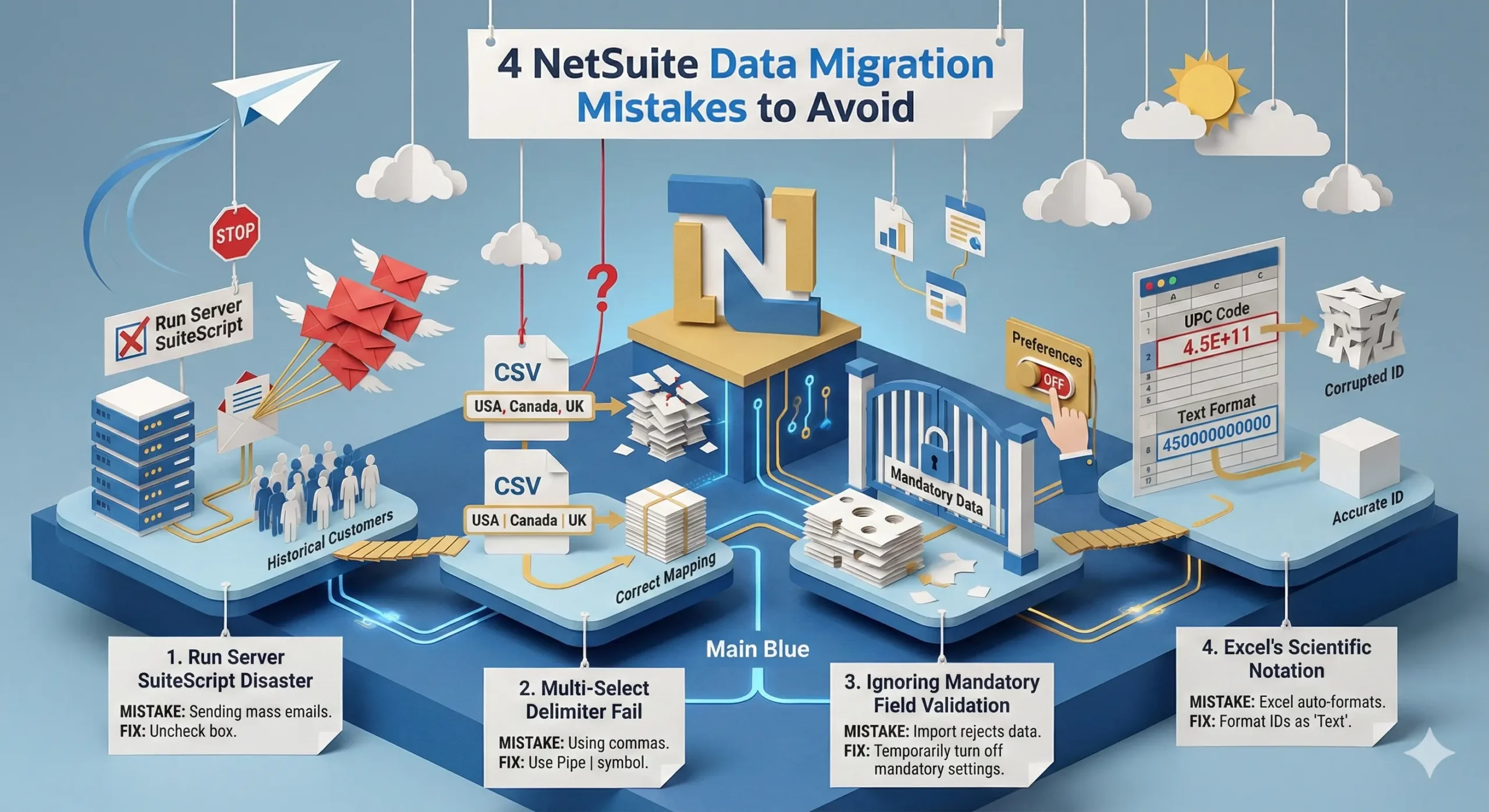
1. “Run Server SuiteScript” Disaster
During import, there is a checkbox labeled “Run Server SuiteScript and Trigger Workflows.”
-
The Mistake: Leaving this checked.
-
The Consequence: If you have an email workflow set up (e.g., “Send Welcome Email to New Customer”), checking this box will trigger that email for every single historical customer you import. You could accidentally spam 5,000 past clients in ten minutes.
-
The Fix: Always uncheck this box during migration unless you explicitly need a script to run.
2. Multi-Select Delimiter Fail
-
The Mistake: Using commas to separate values in a multi-select field (e.g., assigning a customer to multiple subsidiaries:
USA, Canada, UK). -
The Consequence: NetSuite reads the comma as a new column in the CSV, breaking the row mapping.
-
The Fix: NetSuite requires the Pipe
|symbol for multi-select fields (e.g.,USA|Canada|UK).
3. Ignoring “Mandatory Field” Validation
-
The Mistake: Trying to import historical data that lacks fields you have now made mandatory (e.g., forcing a “Lead Source” on all customers).
-
The Consequence: The import will reject every row that is missing that data.
-
The Fix: Temporarily go to Setup > Accounting > Accounting Preferences and turn off mandatory settings for the duration of the migration. Just remember to turn them back on before Go-Live!
4. Excel’s Scientific Notation Formatting
-
The Mistake: Excel often auto-formats long numbers (like UPC codes or Account Numbers) into scientific notation (e.g.,
4.5E+11). -
The Consequence: NetSuite imports the scientific notation literally, corrupting your item codes or account numbers.
-
The Fix: Format all ID columns as “Text” in Excel before typing or pasting data into them to prevent auto-formatting.
Troubleshooting Common NetSuite Data Migration Errors
The NetSuite Import Assistant provides vague error messages. Here is the translation.
1. “Invalid entity reference key ‘123’ for subsidiary ‘1’”
-
Translation: NetSuite cannot find the Customer or Vendor you are trying to link to this transaction.
-
The Fix: You likely mapped the Name field (e.g., “Google”) but NetSuite is expecting the Internal ID. Or, the Customer exists but is assigned to a different Subsidiary than the one listed in the CSV.
2. “This record already exists”
-
Translation: You are trying to create a new record, but the
External IDprovided in the CSV is already assigned to a record in the system. -
The Fix: Check your file for duplicates. If you are trying to update an existing record, switch the Import Assistant setting from “Add” to “Update.”
3. “Invalid account reference key”
-
Translation: You are trying to import a Journal Entry that posts directly to a Control Account (like Accounts Receivable or Accounts Payable).
-
The Fix: NetSuite prohibits direct JEs to control accounts without an entity name. You must either add a specific Name (Customer/Vendor) to that line in the CSV or use the “Suspense Account” method described above to bypass direct control account posting.
Frequently Asked Questions
Q: Should I migrate all my historical data to NetSuite?
A: No. This is the single most common cause of implementation delays. Migrating 7-10 years of detailed transactions (every invoice, bill, and journal entry) is expensive, technically risky, and often creates “garbage in, garbage out” scenarios. In 2026, the best practice is to keep your legacy data in a low-cost Data Warehouse (like Snowflake or a simple SQL database) for auditing, and only bring “Open Balances” into NetSuite.
Q: What is the difference between “Open Balances” and “Historical Data”?
A:
Open Balances are the live data you need to run your business today. This includes unpaid customer invoices (AR), unpaid vendor bills (AP), and current inventory levels on hand.
Historical Data refers to “closed” transactions—bills you already paid and orders you already shipped. You do not need these in your live ERP environment to process new orders.
Q: How far back should we migrate financial data?
A: We recommend migrating Summary Trial Balances (monthly level) for the previous 2 fiscal years. This allows you to run “Year-over-Year” comparative financial reports immediately after Go-Live. Anything older than 2 years should be archived externally for tax compliance but kept out of your clean, new NetSuite environment.
Q: What happens if I need to look up an invoice from 5 years ago?
A: You should retain read-only access to your legacy system (e.g., QuickBooks or Sage) for a limited time, or export that data into a searchable PDF archive or BI tool. Do not pay for expensive NetSuite storage just to house old records you access once a year.
Conclusion
Data migration is not just a technical task; it is the first real test of your internal financial controls.
If you attempt to migrate messy historical data, you will spend your first six months on NetSuite troubleshooting “ghost” balances rather than analyzing growth. Stick to the Cleanse Master Data Open Balances approach. Prioritize a clean sub-ledger over perfect historical granularity—your auditors (and your sanity) will thank you.
